The organisation structure feature in Moodle Workplace enables system administrators to set different permissions for users reflecting the company structure and create multiple position or department frameworks.
Having this feature creates efficiencies for administrators by allowing them to assign responsibilities based on a users position or department (for example, enrol them in an onboarding or compliance course).
With Organisation Structure, admins can create custom audiences or reporting lines to define teams that can be used across the product to perform actions on or give access to these groups or individuals, such as creating dynamic rules that automatically do something (for example, enrol them in an onboarding or compliance course), generating custom reports for a specific department (or position) and filter users by role or designing custom dashboards for specific audiences (for example, a dashboard page for managers with learning progress information for their teams)
To navigate to Organisation structure, the Workplace admin can toggle the Workplace launcher to the left of their profile.
Access the ‘Department’ feature
‘Departments’ is the first page we see after selecting ‘Organisation structure’. From here, we can access current department frameworks and click on the ‘New framework’ button, which allows you to create a new framework. You can create multiple position or department frameworks, each one representing a different point of view of the organisation.
By selecting ‘New department’ you can create a hierarchy tree of departments reflecting the company structure.
Create ‘Positions’ and ‘New frameworks’
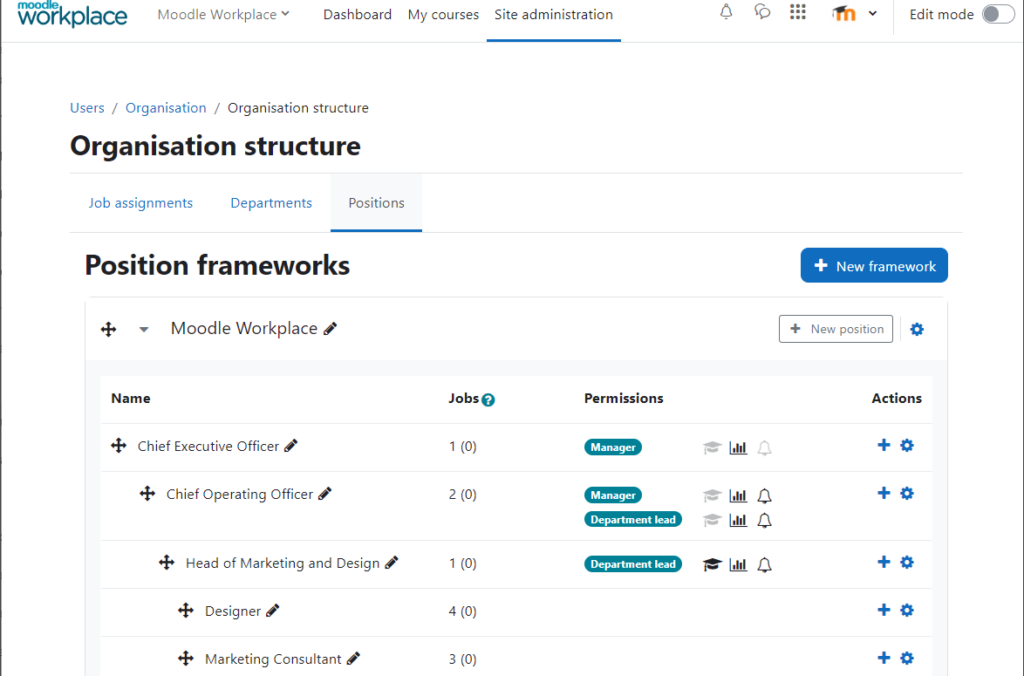
Going to ‘Positions’ you can access current position frameworks and create a new framework by clicking on the ‘New framework’ button. Similar to the ‘Departments’ section, by selecting ‘New position’, you can create a hierarchy tree of positions reflecting the company structure. It’s important to remember that these positions can have specific permissions related to allocating team members, sending notifications, and viewing reports.
When reviewing the ‘Positions’ page, you’ll notice that positions are structured in the same way as departments, but they have two additional properties called ‘Manager’ and ‘Department Lead’. These are effectively permissions that are tight to their effective positions.
‘Manager’ is the manager of anyone in a lower position, regardless of their department. ‘Department Lead’ is a manager of anyone in a lower position, in the same department or subdepartment.
Assign jobs with ease
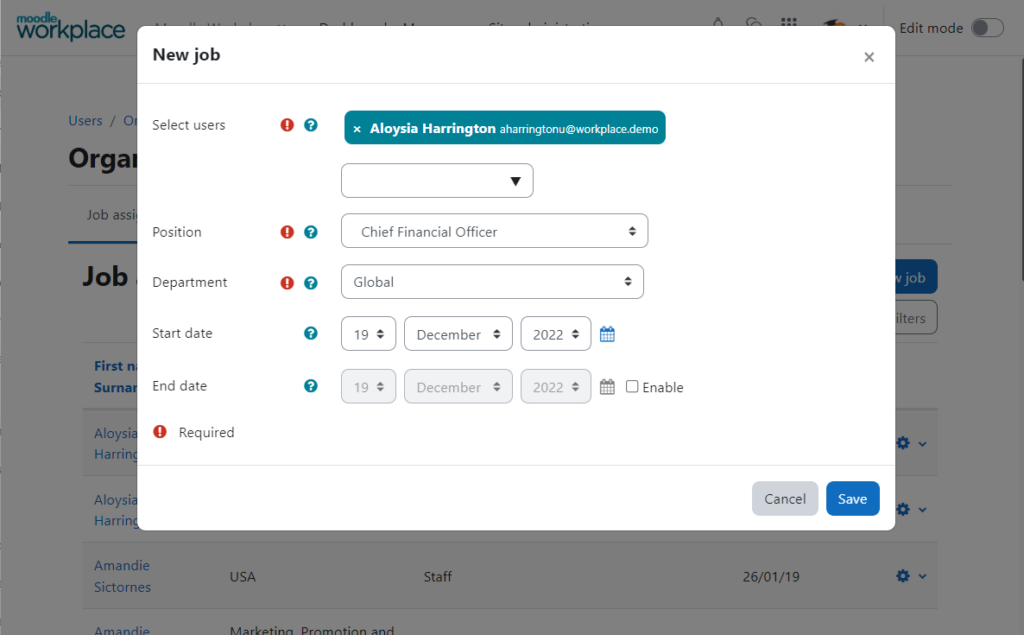
After you have created the relevant departments and positions, the last step is to go to ‘Job assignments’. Click on ‘New job’ to select a user, a position, a department and put start and end date.
The following video tutorial demonstrates Organisation Structure. For more details, refer to the documentation. If your organisation would like to improve its learning efficiencies, feel free to contact us to discuss your requirement.